



BackendDevOpsDocker
Docker: run your whole project with one command, on any machine

Have you ever heard "but it works on my machine!"? It's the most famous sentence in programming. It usually means a project runs for one developer and breaks for another, because their Python version differs, the database isn't installed, or some small setting was forgotten.
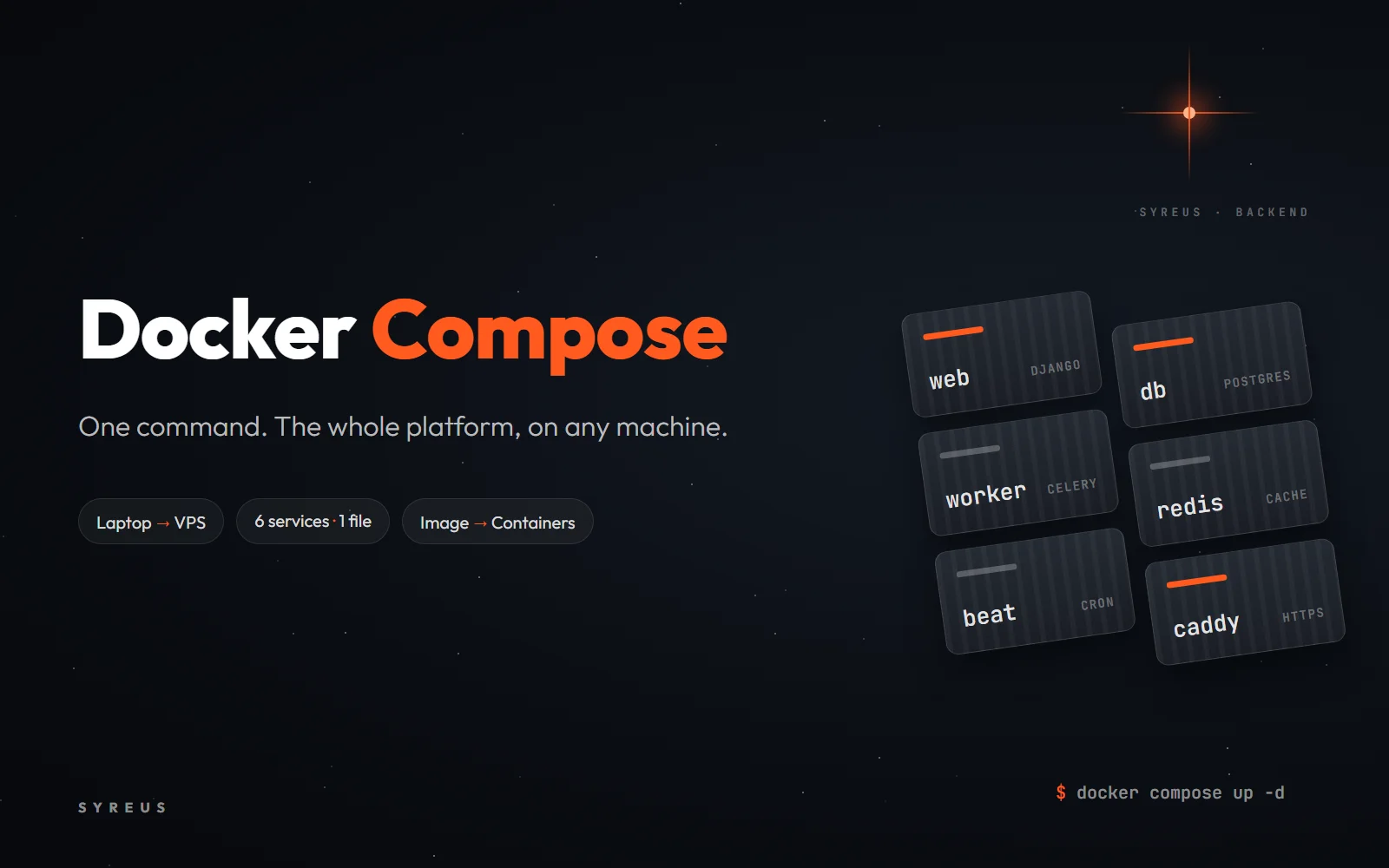
The SYREUS server isn't one program. Behind every page you open on the platform, six services work together:
web: the Django app that answers requests from the site and the app.
db: the PostgreSQL database, which holds your account, progress and points.
redis: fast memory that passes jobs between services.
worker: a Celery worker that runs heavy jobs in the background, like emailing this article to newsletter subscribers.
beat: an alarm clock for scheduled jobs, like event reminders every five minutes and closing the streak day at midnight.
caddy: the gateway that receives visitors and turns on HTTPS automatically.
Imagine installing all of that by hand, with the right versions, on your laptop, your teammate's laptop and the server. That's where Docker comes in.
What is Docker?
Think of shipping containers. The ship doesn't care what's inside, whether it's furniture, fruit or cars: every container has the same shape and size, and is moved the same way. Docker does the same for software. It packs your program with everything it needs (the language version, libraries and settings) into one container that runs the same way on any machine with Docker.
You'll hear two words a lot:
Image: the ready-made recipe for your program. It's built once and doesn't change.
Container: a running copy of that image. You can run many containers from one image, like cooking many dishes from one recipe.
That's exactly what we do: web, worker and beat are three containers from the same image, each running a different command.
Dockerfile: the image's recipe
An image is built from a text file called Dockerfile. Here's a shortened version of ours:
FROM python:3.12-slim
WORKDIR /app
COPY requirements.txt ./
RUN pip install -r requirements.txt
COPY . .
CMD ["gunicorn", "config.wsgi:application", "--bind", "0.0.0.0:8000"]
Read it like cooking steps: start from a system with Python 3.12, go into the /app folder, copy the library list and install it, then copy the code and start the server.
Notice that we copy requirements.txt on its own before the rest of the code. Docker saves the result of every step, so if you change a line of code but not the libraries, it skips reinstalling them and the build gets much faster.
Docker Compose: the whole band
A Dockerfile describes one service. A docker-compose.yml file describes the whole band: which services run, how they connect, and who waits for whom. Here's a piece of ours:
services:
db:
image: postgres:17-alpine
volumes:
- pgdata:/var/lib/postgresql/data
healthcheck:
test: ["CMD-SHELL", "pg_isready"]
web:
build: ./backend
environment:
POSTGRES_HOST: db
depends_on:
db:
condition: service_healthy
Two things are worth noticing. First, web reaches the database by the name db, not an IP address, because Compose puts the services on one network where each knows the others by name. Second, web doesn't start until the healthcheck confirms the database is really ready, so it never crashes from starting too early.
One command
docker compose up -d
With this command Docker downloads the PostgreSQL, Redis and Caddy images, builds the Django image from the Dockerfile, waits for the database, updates its tables (migrations) and starts all six services. We use the same command on our laptops and on the server, so there are no "server only" steps for someone to forget.
Where does the data live?
Containers are disposable: you can delete and rebuild them whenever you like. So we don't keep data inside them. It lives in separate storage called a volume, like pgdata in the example. The database container can be deleted and rebuilt, and your account and points stay where they are.
Careful: docker compose down stops the services and keeps the data, but docker compose down -v deletes the volumes too. Never type it on a real server.
What did we gain?
One environment for everyone: the same versions on every machine, so no surprises.
A fast start: a new teammate runs the whole server in minutes, not a whole day.
Simple deploys: any Linux server with Docker is enough.
Isolation: our PostgreSQL doesn't clash with a version another project uses on the same machine.
Self-healing: with restart: unless-stopped, any service that stops comes back on its own, even after the server reboots.
Try it yourself
Install Docker Desktop, then type in your terminal:
docker run --rm -p 8080:80 nginx
Open http://localhost:8080 in your browser: a full web server running on your machine, and you installed nothing but Docker itself. Stop it with Ctrl+C and the container is removed automatically.
Next time someone tells you "it works on my machine", answer: "Great, then we'll ship your machine." That old joke is exactly the idea behind Docker.
0 comments